
OutreachSheet runs inside a Google Sheet you copy into your own account. This walkthrough shows the route from that copy to a checked message: open setup, add your offer and list, preview an email, then test the schedule before sending to contacts.
You need Gmail or Google Workspace, a contact list and a reason to write to those people. The same workflow works for cold and warm outreach, in English or several languages. All three OutreachSheet packages include the same software; the higher packages add personal setup help.
1. Make your copy and open setup
After purchase, open your copy link and choose Make a copy. Sign in to the Google account you intend to send from. The spreadsheet and its script belong to that account.
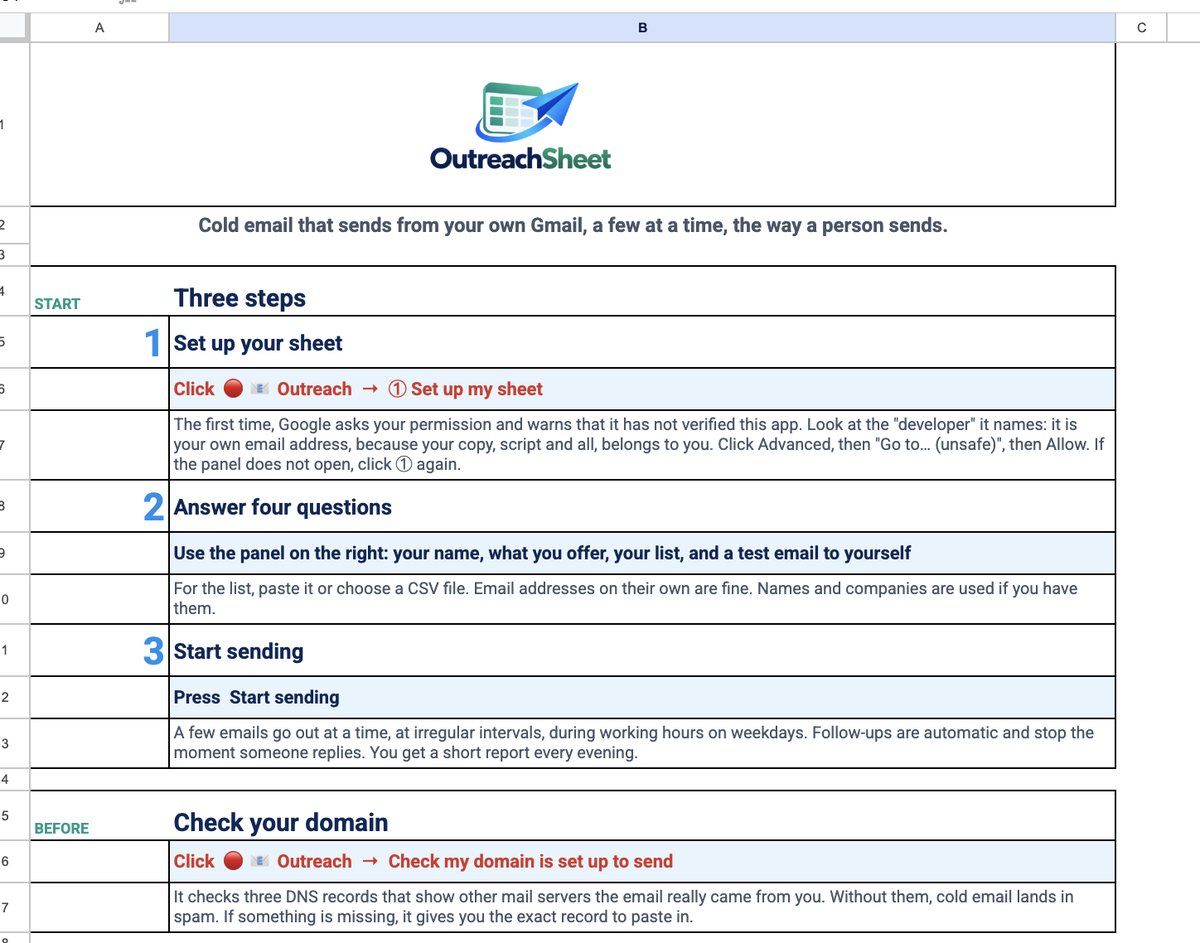
From the Outreach menu, choose “Set up my sheet”. Review Google’s requested permissions in your own account. The setup panel asks four questions: your name, what you offer, your list and an address for a test email to yourself. Keep test mode on while you check the settings.
2. Prepare a list with useful context
Put one person on each row. Paste addresses or import a CSV. Keep the fields that make your message relevant: a name, a company and a specific reason to get in touch. Duplicates are skipped and the permanent Do Not Contact list is checked during import and before sending.
The Google Sheets mail merge guide explains how to organise columns and compare the available sending approaches.
Worked example · fictional contact
- First name
- Alex
- Company
- Example Studio
- alex@example.com
- Town
- York
3. Preview a complete email, including missing fields
Any column can personalise a message. {{Company}} inserts the company. {{Town|your area}} uses “your area” if Town is empty. Review several contacts, including rows with missing values.
Illustrative template
Subject: A quick question for {{Company}}
Hi {{First name}},
We help small teams organise their customer enquiries. I’m getting in touch with studios in {{Town|your area}}. Is this something you handle at {{Company}}?
If it is, I can send a short example.
Sam
For the fictional row above, the subject becomes “A quick question for Example Studio”, the greeting becomes “Hi Alex”, and the town becomes “York”. If the Town field is empty, the sentence uses “your area”. Replace the example offer with your own before sending.
The live preview shows the first email as the prospect will read it. Send a test to yourself and check the complete message. Unresolved placeholders, missing values without fallbacks and leftover bracketed example text hold an email back.
4. Test the schedule, then choose when to send
Set your days, hours and time zone. The default daily limits are 30 new contacts and 60 total emails, including follow-ups. Test mode records what the schedule would send without contacting the list. Check the log before switching test mode off.
Google currently lists Apps Script email allowances of 100 recipients per day for consumer accounts and 1,500 for Google Workspace. Account, trial and other Google limits can also apply. These are platform allowances, not a recommended daily target. See Google’s current quota documentation before raising your settings.
You can prepare up to four sequence steps. Gaps are counted from the previous email; the follow-up guide includes a worked schedule. For several markets, prepare and preview each language version as well.
5. Read what comes back
Replies are checked hourly, or when you choose “Check for replies now”. The Replies tab separates seven categories so you can find conversations and delivery issues. The descriptions below explain the categories; they are not a recording of a live campaign.
| Category | What it tells you |
|---|---|
| Reply | A person has answered. Read it and continue the conversation yourself. |
| Opt-out | A request to stop. Recognised opt-outs go on the permanent Do Not Contact list. |
| Auto-reply | An automatic response, such as an out-of-office message. |
| Bounced | The message could not be delivered. |
| Blocked | The receiving server rejected the message as spam. |
| Delayed | Delivery has been delayed. |
| Needs you to confirm | The receiving system asks for a confirmation step. |
The evening report arrives at 18:00 in the sheet’s time zone, with sending totals, responses and people waiting for you. Use “Pause sending” whenever you need to review the campaign.
Your Google account, your copy
Your list, templates, emails and logs stay in your Google account and are processed by Google services. There is no OutreachSheet sending server. No open-tracking pixel or click tracking is added.
With Guided setup, you click through the setup while we guide you on Google Meet. Ready to send also includes preparing your imported list and first sequence; you approve Google’s permissions and press Start in your own account. We never ask for your password.
See the complete features and requirements or compare the setup packages.